





Best Call of Duty: Mobile Settings for Low-End Phones (No Lag)
Call of Duty: Mobile runs on a huge range of phones, but on an older or budget device the default settings can turn every match into a slideshow. Stutters during gunfights, a hot phone after ten minutes and sudden frame drops in Battle Royale are almost always fixable. This guide shows the exact graphics, frame rate and control settings that give low-end phones the smoothest game possible, plus the phone tweaks that stop lag before it starts.
Quick setup
- Graphic quality: Low (or Very Low if your phone shows it)
- Frame rate: the highest option your phone can hold steady, usually High
- Turn off: depth of field, bloom, real-time shadows, ragdoll, anti-aliasing and water reflection
- Free space: keep at least 4 to 5 GB free and delete map packs you never play
- Heat: if the phone gets hot, drop the frame rate one step instead of raising graphics
Why Call of Duty: Mobile lags on cheap phones
There are two different kinds of “lag” and they need different fixes. Frame drops happen when your phone’s chip cannot draw the game fast enough: the screen stutters, aiming feels heavy and the problem gets worse in busy fights or big Battle Royale areas. Network lag happens when your connection is slow or unstable: enemies teleport, you die behind cover and the ping number in the corner turns yellow or red.
On a low-end phone the first problem is usually the bigger one. Budget chips, 3 or 4 GB of RAM and slow storage struggle with high textures, shadows and effects. The good news is that Call of Duty: Mobile still looks clean on its lowest preset, so you lose very little by turning things down and gain a lot of smoothness.
Best graphics settings for low-end phones
Open the game, tap the gear icon in the top right corner and go to Audio and Graphics. Set everything as shown below. The names can change slightly between seasons and devices, but the options are the same.
| Setting | Recommended | Why |
|---|---|---|
| Graphic quality | Low (or Very Low) | The biggest single boost to frame rate |
| Frame rate | High | Smoother aim; lower it one step if the phone overheats |
| Depth of field | Off | Blur effect that costs performance and hides enemies |
| Bloom | Off | Removes glow that makes bright maps harder to read |
| Real-time shadows | Off | One of the heaviest effects on weak chips |
| Ragdoll | Off | Death animations only, no gameplay value |
| Anti-aliasing | Off | Smooths edges but eats GPU power |
| Water reflection | Off | Noticeable drops near water on Battle Royale maps |
| BR graphic style | Colorful or Realistic, whichever runs better | Test both in a training match and keep the smoother one |
After changing these, play one Multiplayer match on a small map and one Battle Royale game before judging the result. If the game still stutters, lower the frame rate one step before you change anything else.
Graphics quality vs frame rate
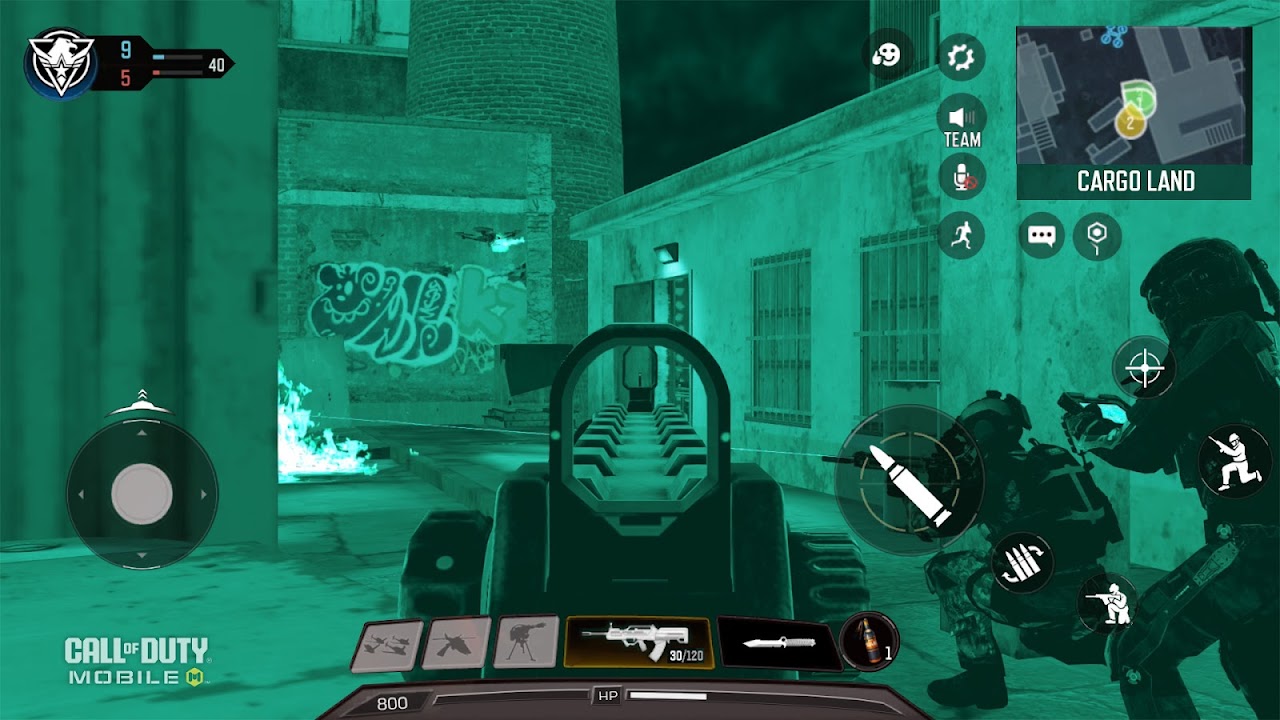
The golden rule for weak phones is low graphics, high frame rate. A steady 40 to 60 frames per second matters much more for winning gunfights than sharper textures. When you raise graphic quality, the game unlocks fewer frame rate options, so always pick Low quality first and then choose the highest frame rate that stays smooth.
The key word is steady. A frame rate that jumps between 60 and 30 feels worse than a locked 40. If you notice drops in long fights, set the frame rate one level lower. Your aim will feel more consistent and your phone will stay cooler for longer sessions.
Do this
- Low graphics with the highest stable frame rate
- Test changes in a training or casual match
- Lower frame rate one step if the phone gets hot
Avoid this
- High or Very High graphics on a budget chip
- Max frame rate that drops every big fight
- Playing for hours while charging and overheating
Free up space and download only what you play
Call of Duty: Mobile keeps growing every season, and a nearly full phone loads slower and stutters more. Keep at least 4 to 5 GB of free storage. Inside the game, open Settings > Download (sometimes shown as resource management) and remove packs you do not use:
- Delete HD resources and high-resolution textures; you will not see them on Low anyway.
- Remove map packs and modes you never play, such as Zombies or extra Battle Royale maps.
- Keep the core Multiplayer and Battle Royale files you actually use.
Clearing old cache after a big season update can also help. If the game feels much worse after a patch, a clean reinstall often fixes it.
Controls and sensitivity that help on weak devices
Settings cannot add power to your phone, but the right controls make lower frame rates easier to play with.
- Aim assist: On. It helps most when frames are not perfect.
- Simple mode for most weapons. Auto fire saves you from extra taps and lets you focus on tracking.
- Slightly lower sensitivity. At a lower frame rate, high sensitivity makes your crosshair jump. Start with standard sensitivity around 60 to 80 and adjust in training.
- Clean HUD. Fewer, larger buttons mean fewer missed taps on small or slower screens.
New to the game? Our Call of Duty: Mobile beginner’s guide covers the basics of loadouts, controls and modes, so you can win more matches while your settings do the rest.
Phone tweaks that reduce lag
A few changes outside the game make a real difference on budget phones:
- Close background apps before you open Call of Duty: Mobile, especially social apps and browsers.
- Turn on game mode or the phone’s performance mode if your brand has one.
- Turn off battery saver. It limits the chip speed and causes drops.
- Remove the case during long sessions and avoid playing in direct sunlight. Heat is the hidden cause of most mid-match stutters.
- Keep your phone updated, but avoid playing right after a big system update while the phone is still optimizing apps.
- Restart your phone once a day if you play a lot. It clears RAM and stops slowdowns that build up over time.
Fixing network lag and high ping
If your frame rate is fine but enemies teleport and shots do not register, the problem is your connection. Check the ping in the top corner during a match: green is good, yellow is playable and red will cost you fights.
- Use stable Wi-Fi when you can and sit closer to the router. A 5 GHz network is faster when you are near the router.
- Pause downloads, streaming and updates on other devices while you play.
- On mobile data, turn on airplane mode for a few seconds and turn it off again to reset a bad connection.
- Choose the server region closest to you in the game settings when it is available.
FAQ
What is the best graphics setting for Call of Duty: Mobile on a low-end phone?
Low graphic quality with the highest frame rate your phone can hold steady, plus depth of field, bloom, shadows, ragdoll and anti-aliasing turned off.
Should I use Max frame rate on a budget phone?
Only if it stays stable. If the game drops frames in fights or the phone gets hot, use High or Medium instead.
Can Call of Duty: Mobile run on 3 GB of RAM?
It can install and run on many 3 GB phones, but you will need Low settings, free storage and no apps open in the background. 4 GB or more gives a much smoother experience.
Why does the game lag more in Battle Royale?
Battle Royale maps are bigger, with more players, vehicles and long view distances. That puts more pressure on your phone than a small Multiplayer map, so test your settings in both modes.
Does deleting HD resources make the game worse?
Not on Low graphics. You are not using those files on that preset, so removing them frees space without changing what you see.
Final thoughts
You do not need a flagship phone to enjoy Call of Duty: Mobile. Low graphics, a steady frame rate, the heavy effects turned off and some free storage will fix most stutters on budget devices. Add a cool phone and a stable connection and you will feel the difference in every gunfight. Once your settings are ready, check the strongest weapons for the current season and grab the latest free rewards.